> ## Documentation Index
> Fetch the complete documentation index at: https://docs.venice.ai/llms.txt
> Use this file to discover all available pages before exploring further.
# Transparent Background Images
> Generate and edit PNG or WebP images with a real alpha channel using transparent_background on /image/generate, /image/edit and /image/multi-edit, or background: transparent on the OpenAI-compatible endpoint.
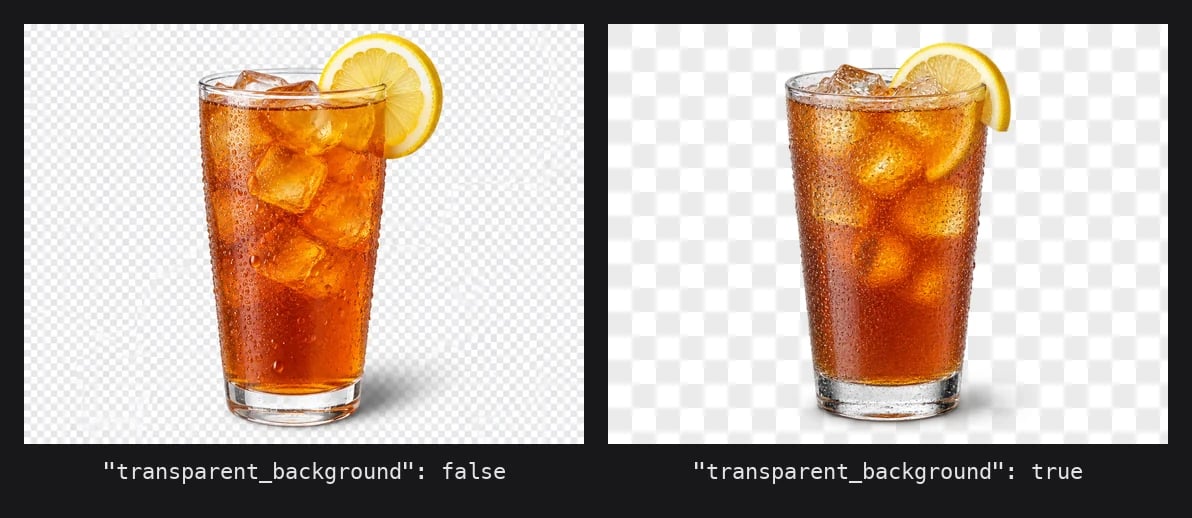
Venice's image API can return images with a real alpha channel instead of a painted-on white or checkerboard. The model composes the subject with transparency from the start, so edges, shadows, and semi-transparent regions (glass, hair, smoke) carry per-pixel alpha rather than a hard mask.
This is different from `/image/background-remove`, which takes a finished opaque image and segments the foreground after the fact. Use native transparency when you are generating or editing the asset anyway; use background removal when you only have the opaque image.
 ## What you need
| Requirement | Detail |
| - | - |
| Model | One flagged `supportsTransparentBackground: true` in `GET /models` constraints. Currently `gpt-image-1-5`, `gpt-image-2-5-flare`, and `gpt-image-2-5-sunburst` (plus their `-edit` variants for the edit endpoints) |
| Output format | `png` or `webp`. JPEG has no alpha channel, so `jpeg` is rejected |
| Parameter | `transparent_background: true` on `/image/generate`, `/image/edit`, `/image/multi-edit`. `background: "transparent"` on `/images/generations` |
Anything else returns `400` before inference runs, so you are not charged for a rejected request.
## Step 1: Generate a transparent image
`/image/generate` is the native endpoint. Set `format` to `png` or `webp` and `transparent_background` to `true`.
```bash theme={"system"}
curl https://api.venice.ai/api/v1/image/generate \
-H "Authorization: Bearer $VENICE_API_KEY" \
-H "Content-Type: application/json" \
-o sticker.png \
-d '{
"model": "gpt-image-2-5-flare",
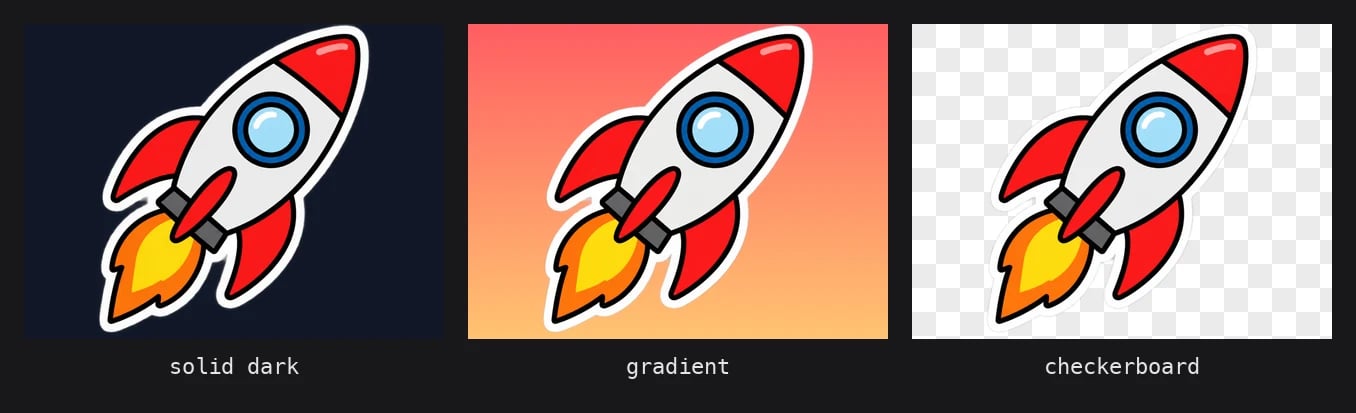
"prompt": "A die-cut sticker of a cartoon rocket ship, bold outlines, flat colors, no background",
"format": "png",
"transparent_background": true,
"quality": "low",
"return_binary": true
}'
```
The response is `content-type: image/png` with an RGBA pixel layout. Without `return_binary` you get the usual JSON envelope with a base64 string in `images[0]`.
`format` defaults to `webp`, which also supports alpha, so omitting `format` works. Only an explicit `"format": "jpeg"` fails.
Say "no background" or "isolated on transparent background" in the prompt as well as setting the flag. The flag guarantees an alpha channel; the prompt steers the model away from drawing a floor, table, or backdrop that would end up opaque inside the subject's bounding box.
## Step 2: Verify the alpha channel
Do not trust the file extension. Check the pixel mode and look at the alpha distribution to confirm the background is actually transparent and not a flattened white fill.
```python theme={"system"}
from PIL import Image
im = Image.open("sticker.png")
print(im.format, im.mode, im.size) # PNG RGBA (1024, 1024)
alpha = im.getchannel("A")
hist = alpha.histogram()
total = sum(hist)
print(f"fully transparent: {100 * hist[0] / total:.1f}%")
print(f"partially transparent: {100 * sum(hist[1:255]) / total:.1f}%")
print("subject bbox:", alpha.getbbox())
```
A correct result has a large share of pixels at alpha `0` (the background), a band of partial values along the edges (anti-aliasing and soft shadows), and the subject's bounding box smaller than the canvas. If `im.mode` is `RGB` or the transparent share is `0%`, the alpha channel was lost somewhere in your pipeline, usually by a resize or re-encode step that dropped it.
## What you need
| Requirement | Detail |
| - | - |
| Model | One flagged `supportsTransparentBackground: true` in `GET /models` constraints. Currently `gpt-image-1-5`, `gpt-image-2-5-flare`, and `gpt-image-2-5-sunburst` (plus their `-edit` variants for the edit endpoints) |
| Output format | `png` or `webp`. JPEG has no alpha channel, so `jpeg` is rejected |
| Parameter | `transparent_background: true` on `/image/generate`, `/image/edit`, `/image/multi-edit`. `background: "transparent"` on `/images/generations` |
Anything else returns `400` before inference runs, so you are not charged for a rejected request.
## Step 1: Generate a transparent image
`/image/generate` is the native endpoint. Set `format` to `png` or `webp` and `transparent_background` to `true`.
```bash theme={"system"}
curl https://api.venice.ai/api/v1/image/generate \
-H "Authorization: Bearer $VENICE_API_KEY" \
-H "Content-Type: application/json" \
-o sticker.png \
-d '{
"model": "gpt-image-2-5-flare",
"prompt": "A die-cut sticker of a cartoon rocket ship, bold outlines, flat colors, no background",
"format": "png",
"transparent_background": true,
"quality": "low",
"return_binary": true
}'
```
The response is `content-type: image/png` with an RGBA pixel layout. Without `return_binary` you get the usual JSON envelope with a base64 string in `images[0]`.
`format` defaults to `webp`, which also supports alpha, so omitting `format` works. Only an explicit `"format": "jpeg"` fails.
Say "no background" or "isolated on transparent background" in the prompt as well as setting the flag. The flag guarantees an alpha channel; the prompt steers the model away from drawing a floor, table, or backdrop that would end up opaque inside the subject's bounding box.
## Step 2: Verify the alpha channel
Do not trust the file extension. Check the pixel mode and look at the alpha distribution to confirm the background is actually transparent and not a flattened white fill.
```python theme={"system"}
from PIL import Image
im = Image.open("sticker.png")
print(im.format, im.mode, im.size) # PNG RGBA (1024, 1024)
alpha = im.getchannel("A")
hist = alpha.histogram()
total = sum(hist)
print(f"fully transparent: {100 * hist[0] / total:.1f}%")
print(f"partially transparent: {100 * sum(hist[1:255]) / total:.1f}%")
print("subject bbox:", alpha.getbbox())
```
A correct result has a large share of pixels at alpha `0` (the background), a band of partial values along the edges (anti-aliasing and soft shadows), and the subject's bounding box smaller than the canvas. If `im.mode` is `RGB` or the transparent share is `0%`, the alpha channel was lost somewhere in your pipeline, usually by a resize or re-encode step that dropped it.
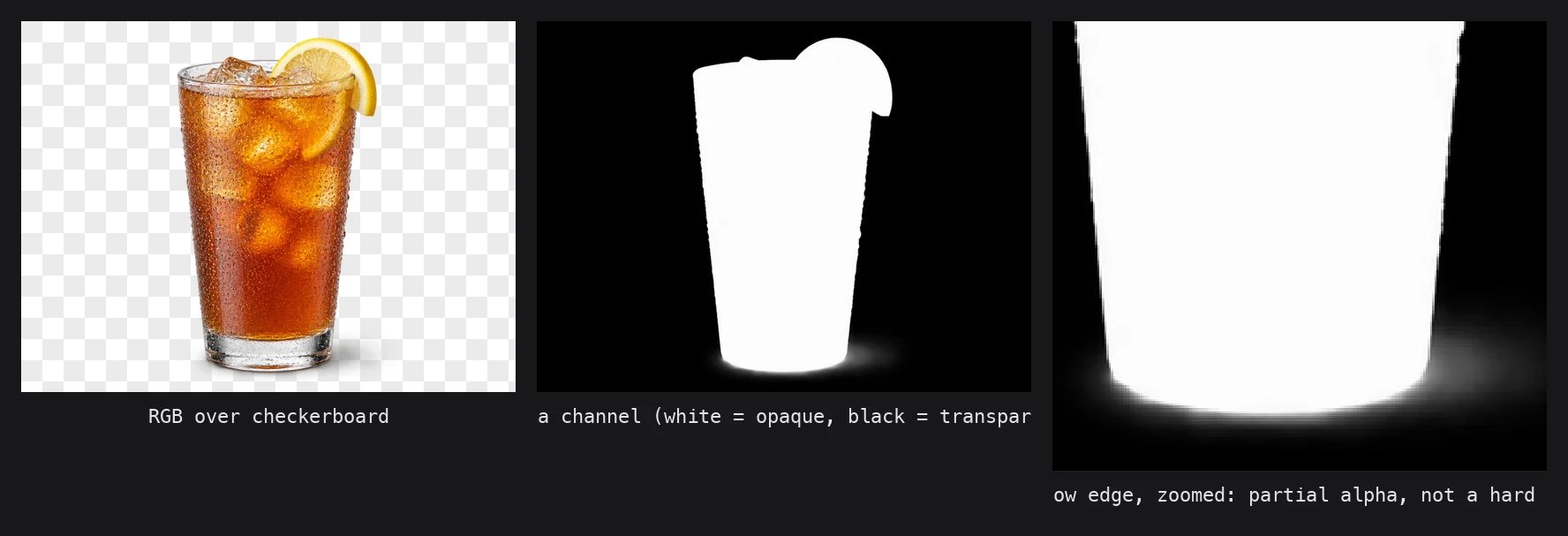 The GPT Image models currently return the opaque region at alpha `252`–`254` rather than `255`. It is visually indistinguishable, but if you threshold on `== 255` to find the subject, you will get an empty mask. Threshold on `> 0` or `>= 250` instead.
## Step 3: Use the OpenAI-compatible endpoint
If you are already on the OpenAI SDK, `/images/generations` accepts the same `background` parameter OpenAI uses. Set it to `"transparent"` and pick `png` or `webp` as `output_format`.
```python theme={"system"}
import base64
from openai import OpenAI
client = OpenAI(
base_url="https://api.venice.ai/api/v1",
api_key=VENICE_API_KEY,
)
result = client.images.generate(
model="gpt-image-2-5-flare",
prompt="A flat vector icon of a paper airplane, isolated, no background",
output_format="webp",
background="transparent",
quality="low",
)
with open("icon.webp", "wb") as f:
f.write(base64.b64decode(result.data[0].b64_json))
```
`background` accepts `transparent`, `opaque`, or `auto`. `opaque`, `auto`, and `null` all keep the model's default behaviour, so the only value that changes anything is `transparent`. `output_format` defaults to `png` on this endpoint, so you can omit it.
## Step 4: Edit with transparency
Both `/image/edit` and `/image/multi-edit` take `transparent_background` too. The source image does not need to be transparent; you can pass an opaque photo and ask the model to isolate the subject while editing it.
```bash theme={"system"}
curl https://api.venice.ai/api/v1/image/edit \
-H "Authorization: Bearer $VENICE_API_KEY" \
-F "model=gpt-image-2-5-flare-edit" \
-F "prompt=Make the apple green and remove the background" \
-F "image=@apple.jpg" \
-F "transparent_background=true" \
-o apple-green.png
```
On the edit endpoints `output_format` is inferred when omitted: normally PNG for 1K edits and JPEG for 2K/4K, but when `transparent_background` is `true` the inference switches to PNG at every resolution. So you only need to send `output_format` explicitly if you want WebP.
The multi-edit form is identical, with `images[]` instead of `image`. This is the natural fit for compositing a product shot onto a new scene and getting the composed result back as a cutout you can place in your own layout.
## Pricing
Transparency does not add a surcharge. You pay the model's normal per-image price, which for GPT Image 2.5 depends on `resolution` and `quality`. A `1K` `low` generation on `gpt-image-2-5-flare` is the cheapest way to iterate on a sticker or icon before paying for `high` or `4K`. See [Image Models](/models/image) for the live price table.
## Errors
The validation runs before the model is called. Both messages name the fix.
| Request | Status | Body |
| - | - | - |
| `transparent_background: true` with `format` / `output_format` `jpeg` | `400` | `Transparent background requires png or webp output format.` |
| `transparent_background: true` on a model without the flag | `400` | `Transparent background is not supported by model 'flux-2-pro'. Use a model with "supportsTransparentBackground": true in its constraints (see GET /api/v1/models).` |
| `background: "transparent"` with `output_format: "jpeg"` on `/images/generations` | `400` | `Transparent background requires png or webp output format.` |
`transparent_background: false` with `jpeg` is fine and returns a normal opaque JPEG.
## Discover supported models at runtime
Model IDs rotate. Instead of hardcoding the list above, filter `GET /models` on the constraint flag. The key is only present, as `true`, on models that support it.
```bash theme={"system"}
curl -s "https://api.venice.ai/api/v1/models?type=image" \
| jq -r '.data[] | select(.model_spec.constraints.supportsTransparentBackground == true) | .id'
```
Use `type=inpaint` for the edit endpoints, which return the `-edit` model IDs.
## When to use this vs. `/image/background-remove`
| | `transparent_background` | `/image/background-remove` |
| - | - | - |
| Input | A prompt (and optionally a source image to edit) | An existing opaque image |
| How alpha is produced | The model composes with transparency from the start | A segmentation model masks the foreground after the fact |
| Shadows and reflections | Kept, with partial alpha, because the model rendered them as part of the subject | Removed along with the background, since they are not foreground |
| Model choice | GPT Image 1.5 / 2.5 only | Fixed internal model, no `model` field |
| Cost | Model's normal generation or edit price | Flat background-remove price |
If you are generating the asset anyway, request transparency up front and skip the second call. Reach for `/image/background-remove` when the opaque image already exists and you do not want to regenerate it.
The GPT Image models currently return the opaque region at alpha `252`–`254` rather than `255`. It is visually indistinguishable, but if you threshold on `== 255` to find the subject, you will get an empty mask. Threshold on `> 0` or `>= 250` instead.
## Step 3: Use the OpenAI-compatible endpoint
If you are already on the OpenAI SDK, `/images/generations` accepts the same `background` parameter OpenAI uses. Set it to `"transparent"` and pick `png` or `webp` as `output_format`.
```python theme={"system"}
import base64
from openai import OpenAI
client = OpenAI(
base_url="https://api.venice.ai/api/v1",
api_key=VENICE_API_KEY,
)
result = client.images.generate(
model="gpt-image-2-5-flare",
prompt="A flat vector icon of a paper airplane, isolated, no background",
output_format="webp",
background="transparent",
quality="low",
)
with open("icon.webp", "wb") as f:
f.write(base64.b64decode(result.data[0].b64_json))
```
`background` accepts `transparent`, `opaque`, or `auto`. `opaque`, `auto`, and `null` all keep the model's default behaviour, so the only value that changes anything is `transparent`. `output_format` defaults to `png` on this endpoint, so you can omit it.
## Step 4: Edit with transparency
Both `/image/edit` and `/image/multi-edit` take `transparent_background` too. The source image does not need to be transparent; you can pass an opaque photo and ask the model to isolate the subject while editing it.
```bash theme={"system"}
curl https://api.venice.ai/api/v1/image/edit \
-H "Authorization: Bearer $VENICE_API_KEY" \
-F "model=gpt-image-2-5-flare-edit" \
-F "prompt=Make the apple green and remove the background" \
-F "image=@apple.jpg" \
-F "transparent_background=true" \
-o apple-green.png
```
On the edit endpoints `output_format` is inferred when omitted: normally PNG for 1K edits and JPEG for 2K/4K, but when `transparent_background` is `true` the inference switches to PNG at every resolution. So you only need to send `output_format` explicitly if you want WebP.
The multi-edit form is identical, with `images[]` instead of `image`. This is the natural fit for compositing a product shot onto a new scene and getting the composed result back as a cutout you can place in your own layout.
## Pricing
Transparency does not add a surcharge. You pay the model's normal per-image price, which for GPT Image 2.5 depends on `resolution` and `quality`. A `1K` `low` generation on `gpt-image-2-5-flare` is the cheapest way to iterate on a sticker or icon before paying for `high` or `4K`. See [Image Models](/models/image) for the live price table.
## Errors
The validation runs before the model is called. Both messages name the fix.
| Request | Status | Body |
| - | - | - |
| `transparent_background: true` with `format` / `output_format` `jpeg` | `400` | `Transparent background requires png or webp output format.` |
| `transparent_background: true` on a model without the flag | `400` | `Transparent background is not supported by model 'flux-2-pro'. Use a model with "supportsTransparentBackground": true in its constraints (see GET /api/v1/models).` |
| `background: "transparent"` with `output_format: "jpeg"` on `/images/generations` | `400` | `Transparent background requires png or webp output format.` |
`transparent_background: false` with `jpeg` is fine and returns a normal opaque JPEG.
## Discover supported models at runtime
Model IDs rotate. Instead of hardcoding the list above, filter `GET /models` on the constraint flag. The key is only present, as `true`, on models that support it.
```bash theme={"system"}
curl -s "https://api.venice.ai/api/v1/models?type=image" \
| jq -r '.data[] | select(.model_spec.constraints.supportsTransparentBackground == true) | .id'
```
Use `type=inpaint` for the edit endpoints, which return the `-edit` model IDs.
## When to use this vs. `/image/background-remove`
| | `transparent_background` | `/image/background-remove` |
| - | - | - |
| Input | A prompt (and optionally a source image to edit) | An existing opaque image |
| How alpha is produced | The model composes with transparency from the start | A segmentation model masks the foreground after the fact |
| Shadows and reflections | Kept, with partial alpha, because the model rendered them as part of the subject | Removed along with the background, since they are not foreground |
| Model choice | GPT Image 1.5 / 2.5 only | Fixed internal model, no `model` field |
| Cost | Model's normal generation or edit price | Flat background-remove price |
If you are generating the asset anyway, request transparency up front and skip the second call. Reach for `/image/background-remove` when the opaque image already exists and you do not want to regenerate it.
 ## Related
* [Image Generation](/guides/media/image-generation) for sizing, quality tiers, and the full `/image/generate` parameter list
* [Image Editing](/guides/media/image-editing) for `/image/edit`, `/image/multi-edit`, and `/image/background-remove`
* [Image Models](/models/image) for current pricing and constraints
This documentation is built and hosted on [Mintlify](https://mintlify.com), a developer documentation platform.
## Related
* [Image Generation](/guides/media/image-generation) for sizing, quality tiers, and the full `/image/generate` parameter list
* [Image Editing](/guides/media/image-editing) for `/image/edit`, `/image/multi-edit`, and `/image/background-remove`
* [Image Models](/models/image) for current pricing and constraints
This documentation is built and hosted on [Mintlify](https://mintlify.com), a developer documentation platform.