

/image/background-remove, which takes a finished opaque image and segments the foreground after the fact. Use native transparency when you are generating or editing the asset anyway; use background removal when you only have the opaque image.
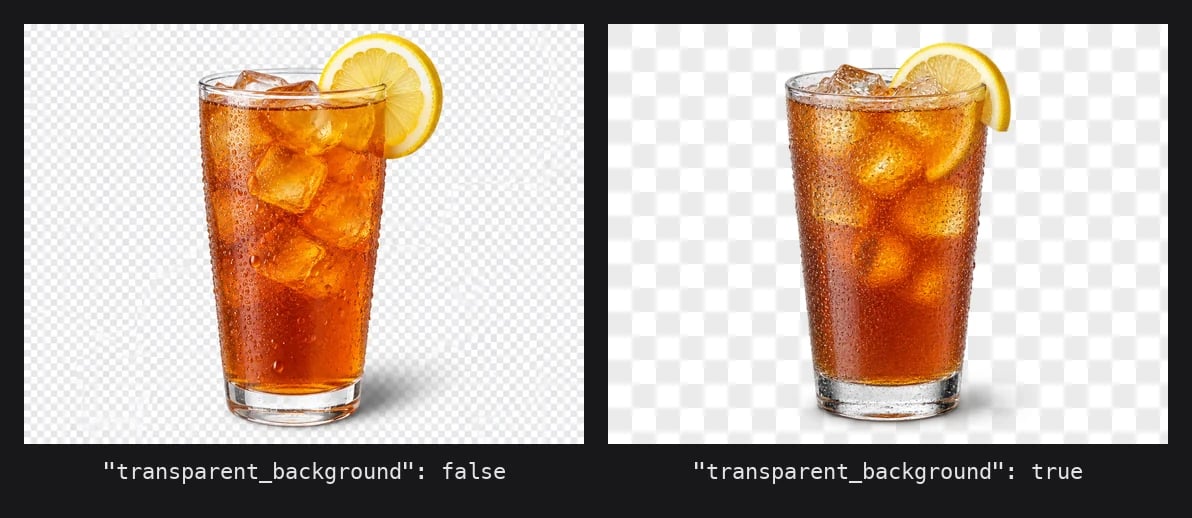
Same prompt and seed on gpt-image-2-5-flare. Left: default output. Right: transparent_background: true, shown over a checkerboard. The drop shadow survives as partial alpha.
What you need
Anything else returns
400 before inference runs, so you are not charged for a rejected request.
Step 1: Generate a transparent image
/image/generate is the native endpoint. Set format to png or webp and transparent_background to true.
content-type: image/png with an RGBA pixel layout. Without return_binary you get the usual JSON envelope with a base64 string in images[0].
format defaults to webp, which also supports alpha, so omitting format works. Only an explicit "format": "jpeg" fails.
Step 2: Verify the alpha channel
Do not trust the file extension. Check the pixel mode and look at the alpha distribution to confirm the background is actually transparent and not a flattened white fill.0 (the background), a band of partial values along the edges (anti-aliasing and soft shadows), and the subject’s bounding box smaller than the canvas. If im.mode is RGB or the transparent share is 0%, the alpha channel was lost somewhere in your pipeline, usually by a resize or re-encode step that dropped it.
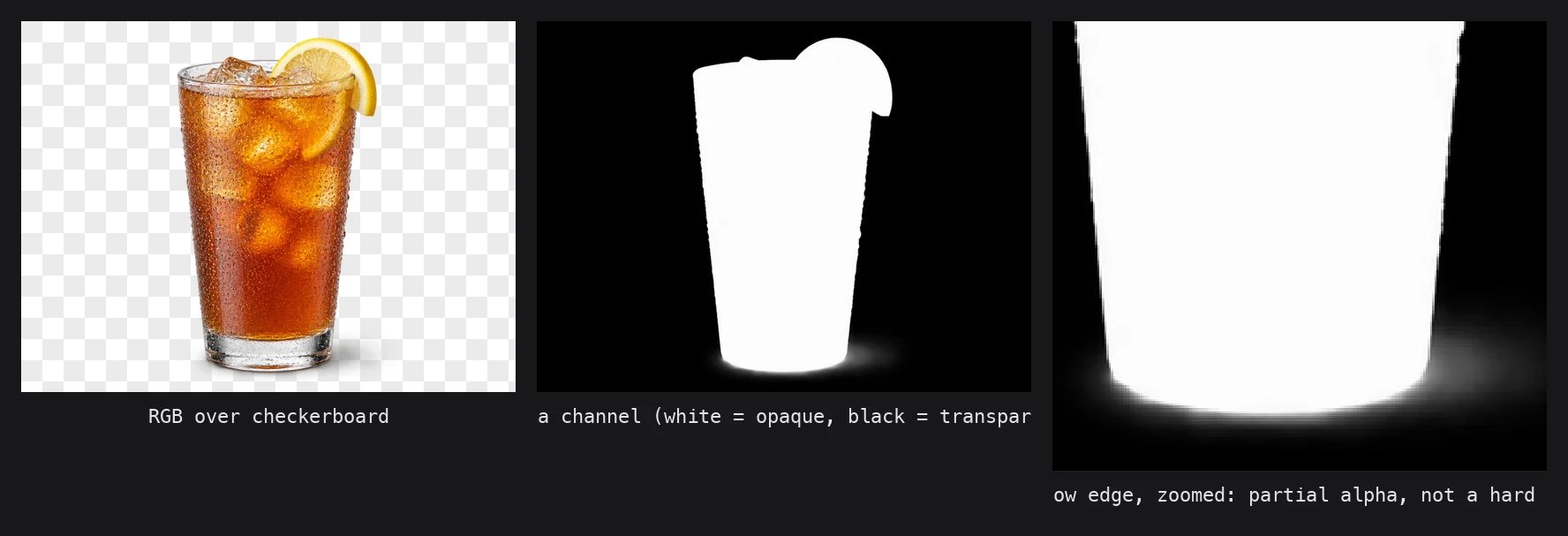
The alpha channel of the image above, isolated. The shadow under the glass fades out over dozens of grey levels rather than snapping from white to black, which is what you want for compositing onto arbitrary backgrounds.
The GPT Image models currently return the opaque region at alpha
252–254 rather than 255. It is visually indistinguishable, but if you threshold on == 255 to find the subject, you will get an empty mask. Threshold on > 0 or >= 250 instead.Step 3: Use the OpenAI-compatible endpoint
If you are already on the OpenAI SDK,/images/generations accepts the same background parameter OpenAI uses. Set it to "transparent" and pick png or webp as output_format.
background accepts transparent, opaque, or auto. opaque, auto, and null all keep the model’s default behaviour, so the only value that changes anything is transparent. output_format defaults to png on this endpoint, so you can omit it.
Step 4: Edit with transparency
Both/image/edit and /image/multi-edit take transparent_background too. The source image does not need to be transparent; you can pass an opaque photo and ask the model to isolate the subject while editing it.
output_format is inferred when omitted: normally PNG for 1K edits and JPEG for 2K/4K, but when transparent_background is true the inference switches to PNG at every resolution. So you only need to send output_format explicitly if you want WebP.
The multi-edit form is identical, with images[] instead of image. This is the natural fit for compositing a product shot onto a new scene and getting the composed result back as a cutout you can place in your own layout.
Pricing
Transparency does not add a surcharge. You pay the model’s normal per-image price, which for GPT Image 2.5 depends onresolution and quality. A 1K low generation on gpt-image-2-5-flare is the cheapest way to iterate on a sticker or icon before paying for high or 4K. See Image Models for the live price table.
Errors
The validation runs before the model is called. Both messages name the fix.transparent_background: false with jpeg is fine and returns a normal opaque JPEG.
Discover supported models at runtime
Model IDs rotate. Instead of hardcoding the list above, filterGET /models on the constraint flag. The key is only present, as true, on models that support it.
type=inpaint for the edit endpoints, which return the -edit model IDs.
When to use this vs. /image/background-remove
If you are generating the asset anyway, request transparency up front and skip the second call. Reach for
/image/background-remove when the opaque image already exists and you do not want to regenerate it.
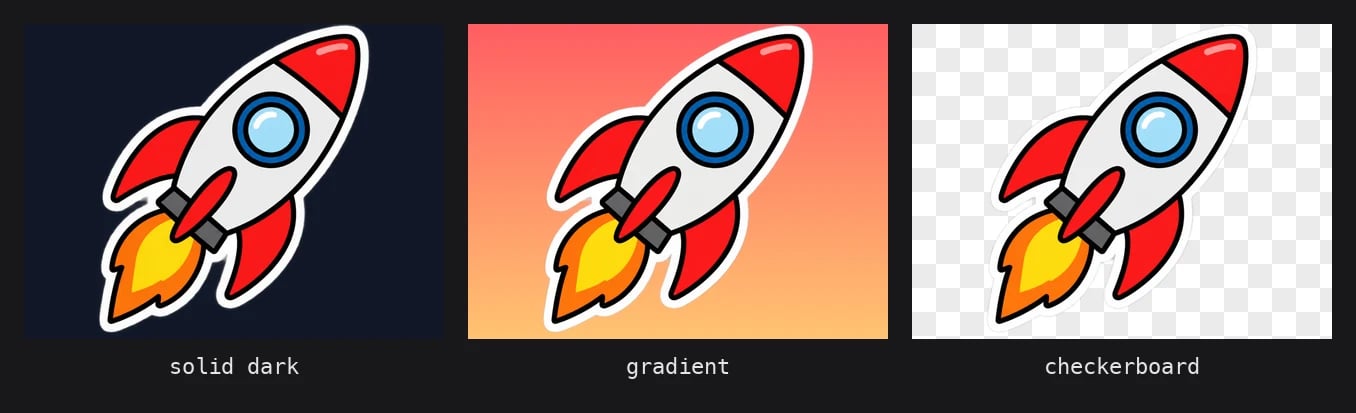
One transparent sticker from the Step 1 request, dropped onto three backgrounds with no further processing.
Related
- Image Generation for sizing, quality tiers, and the full
/image/generateparameter list - Image Editing for
/image/edit,/image/multi-edit, and/image/background-remove - Image Models for current pricing and constraints